This tutorial walks you through installing the fabulk Official Purchasing Assistant Chrome extension on your PC and using its image search features to compare source prices across e-commerce platforms.
Installation Guide
Step 1: Download the Installation Package
Download the fabulk Official Purchasing Assistant extension installation package.
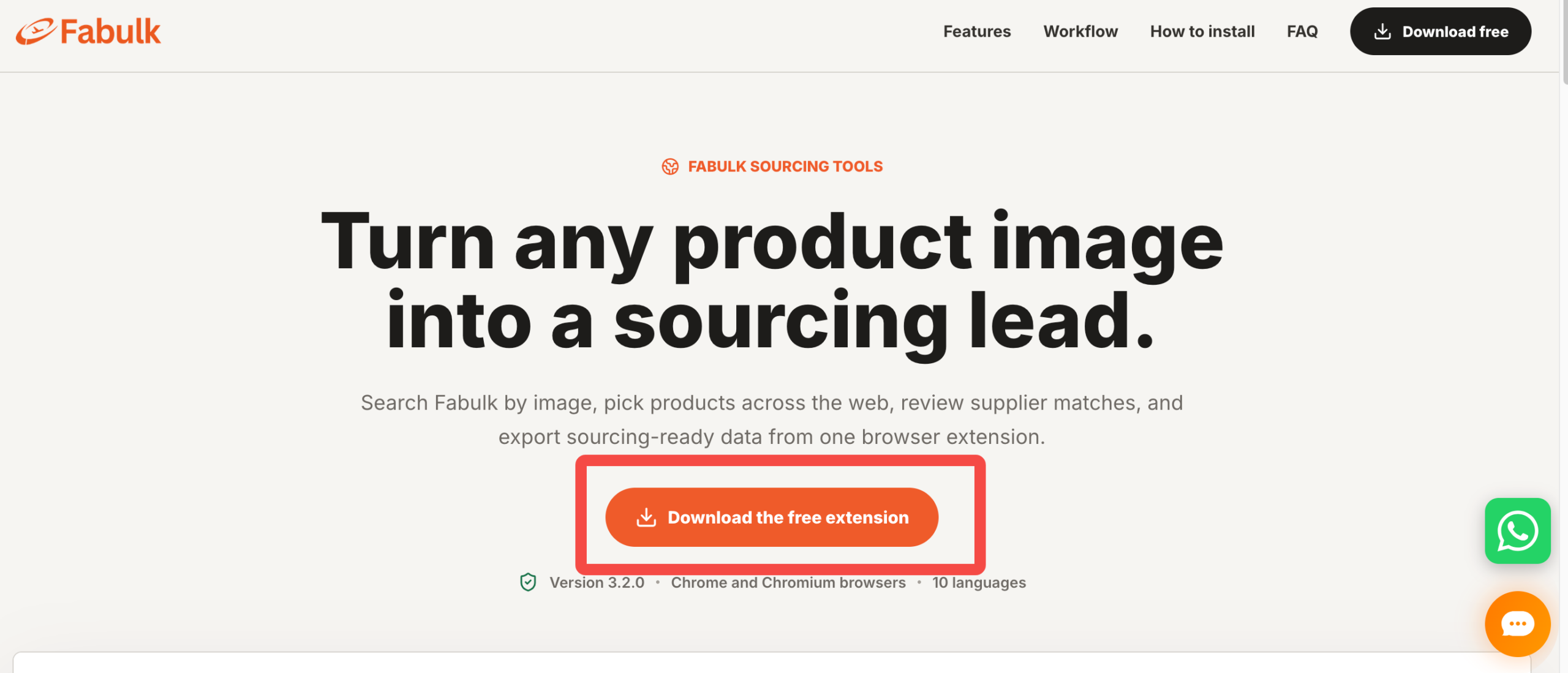 Download the installation package
Step 2: Extract the Downloaded Archive
Open the downloaded file and double-click to extract it.
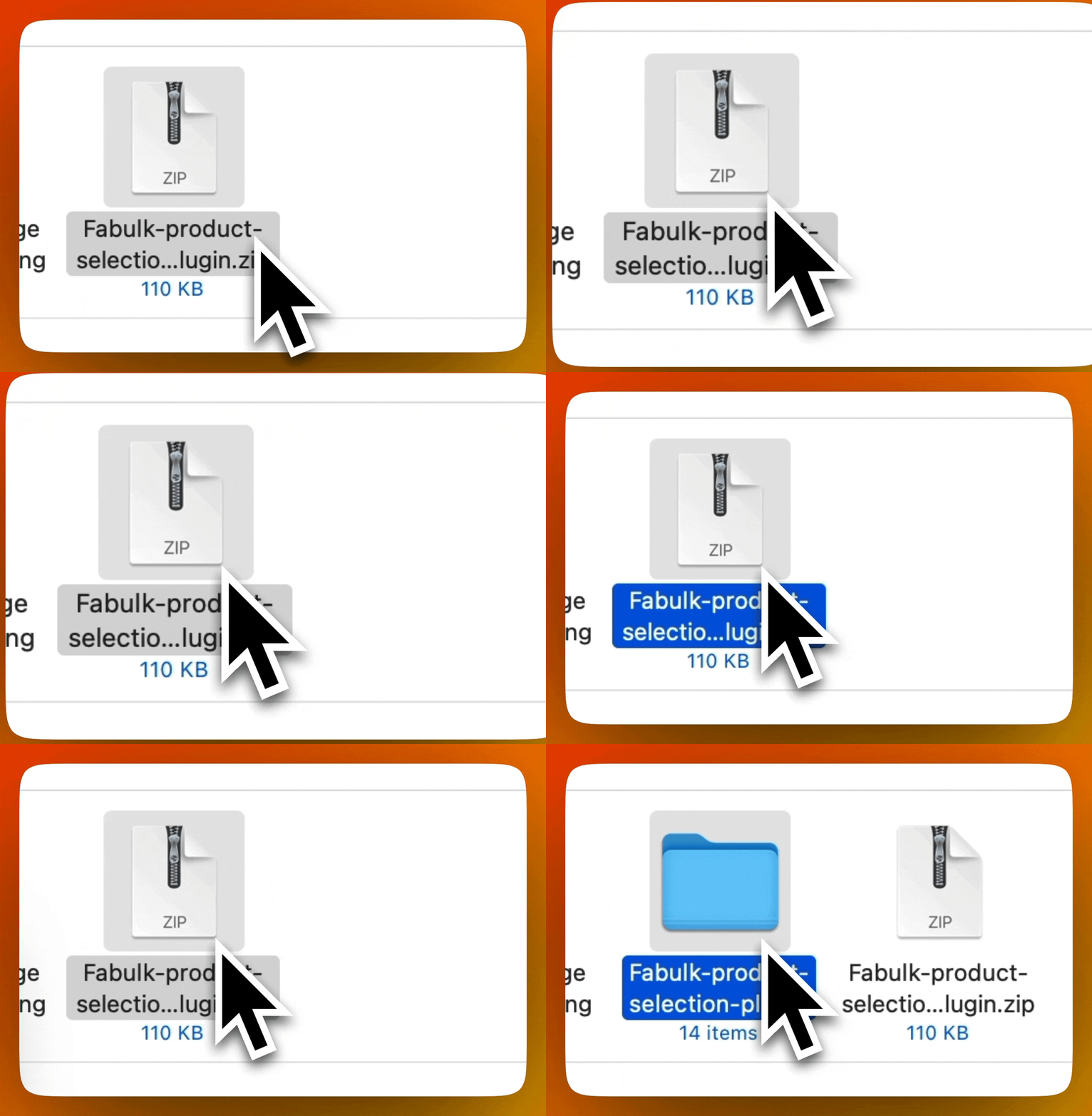 Double-click to unzip
Step 3: Open the Extensions Center
Click the three-dot menu at the top-right of your Chrome browser, find Extensions, and click Manage Extensions.
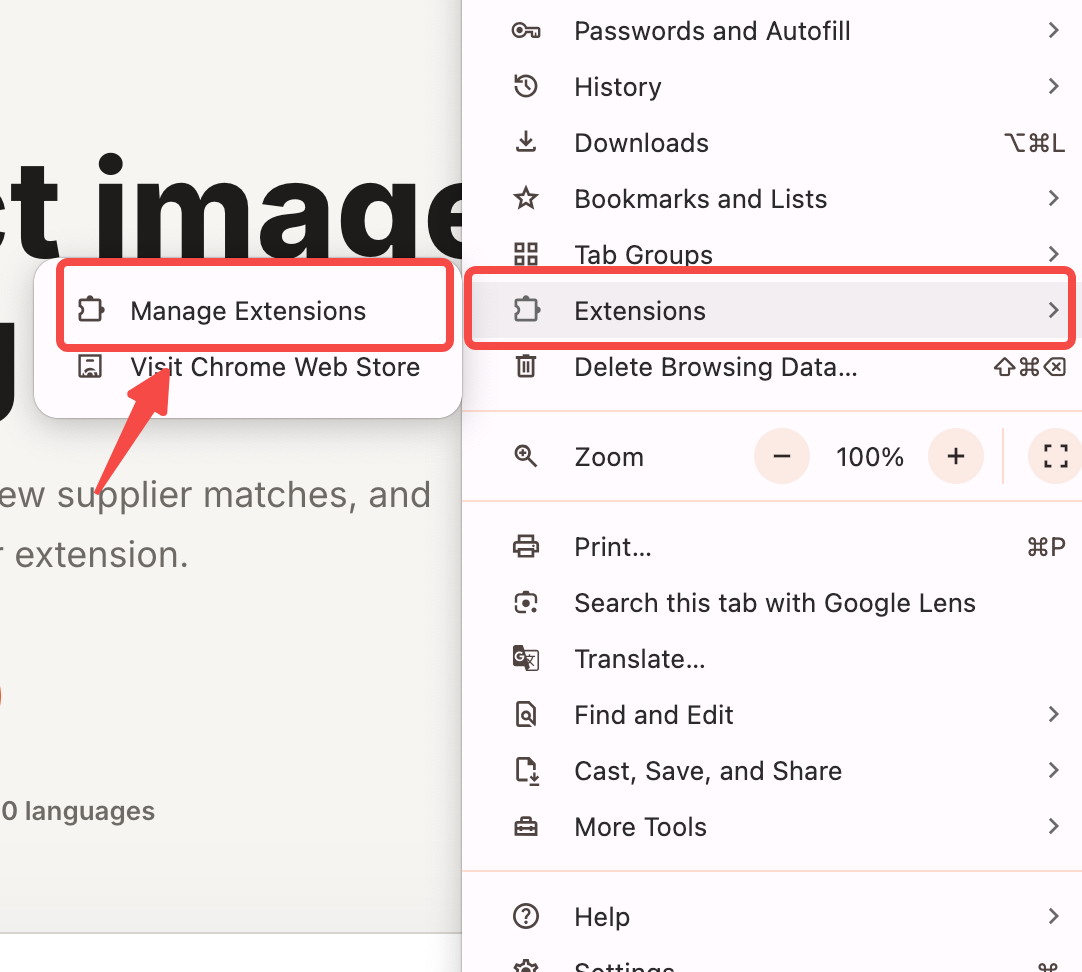 Extensions > Manage Extensions
Step 4: Load the Extracted Folder
Turn on Developer mode at the top-right of the extensions page.
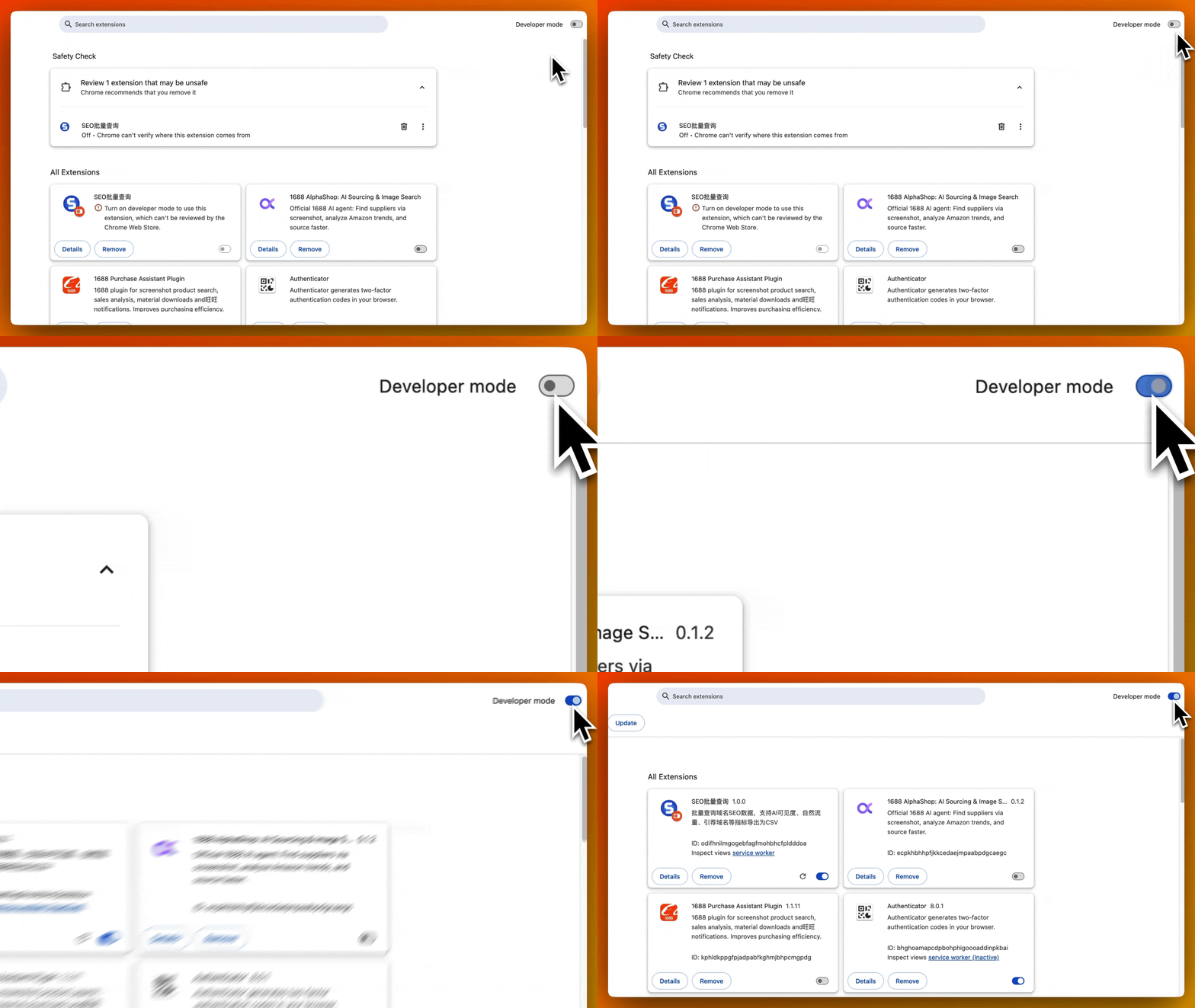 Enable Developer mode
Then drag the extracted folder directly into the extensions page.
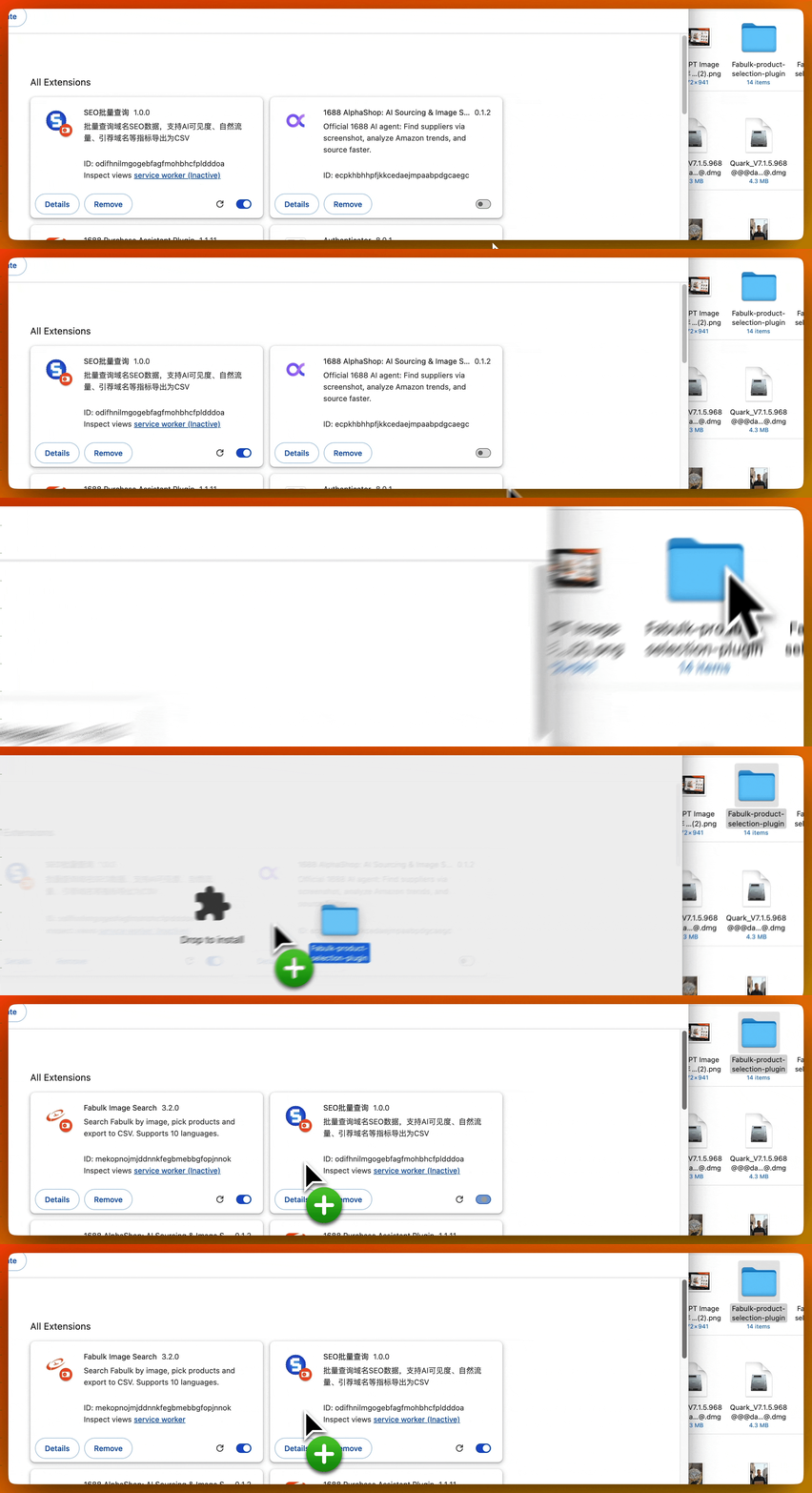 Drag the package into the page
Step 5: Installation Complete
Once the extension file is loaded, you will see the screen below, which means the installation was successful.
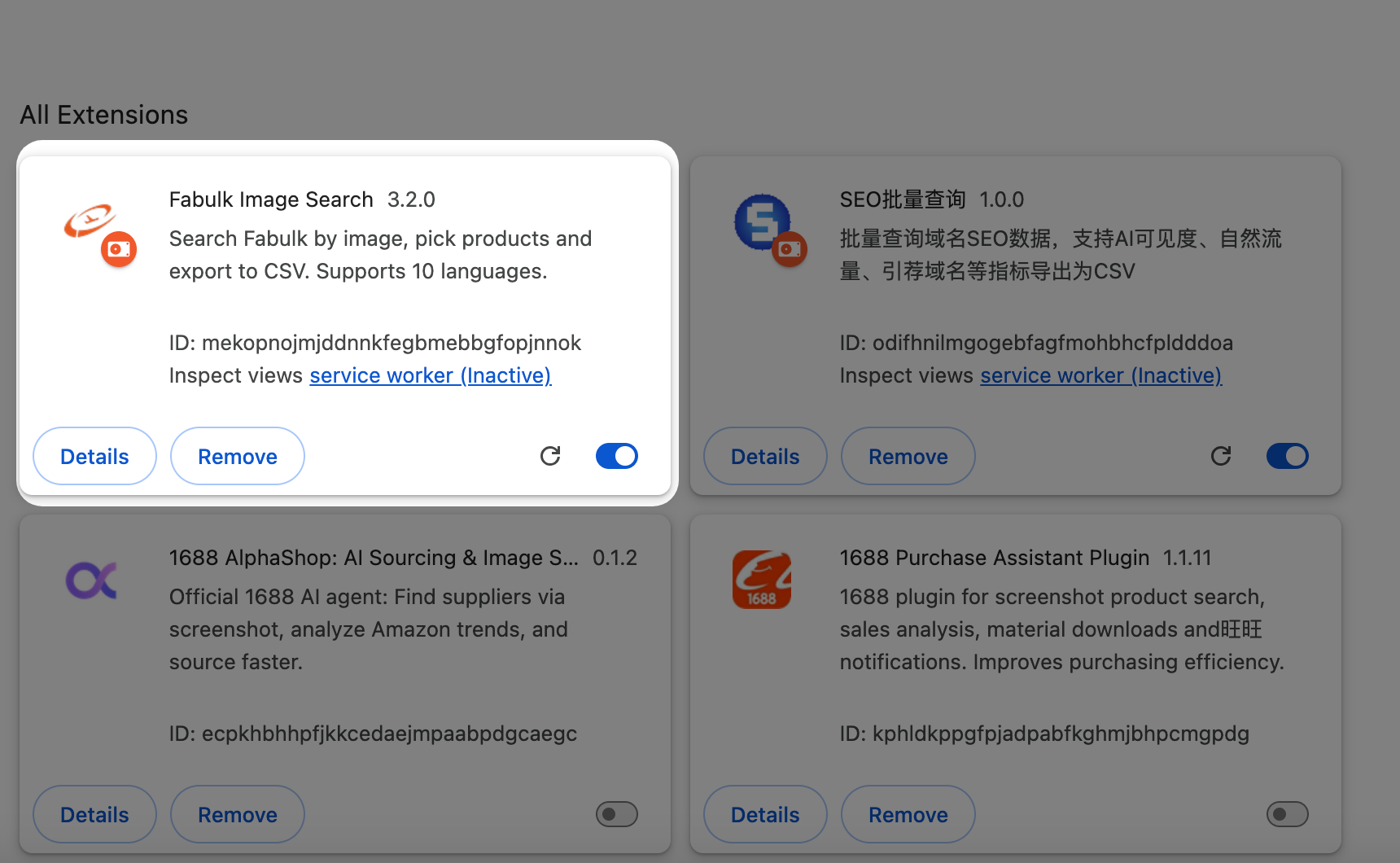 Installation successful
Step 6: Pin the Extension
Pin the extension to the extension toolbar for quick access.
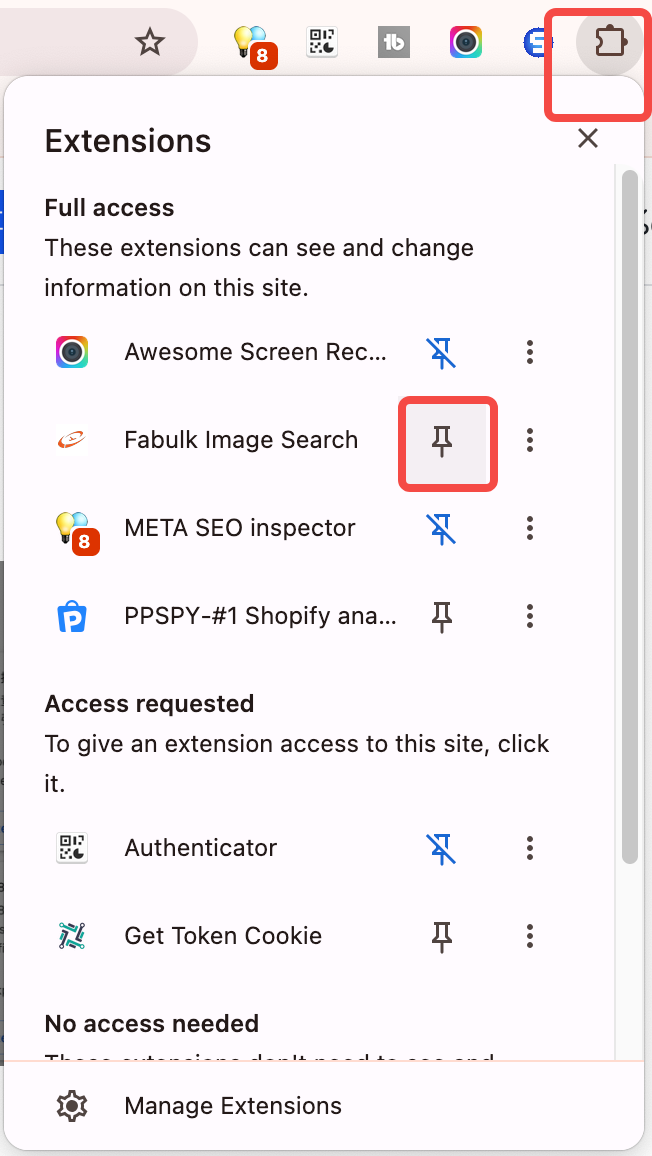 Pin the extension
Step 7: Start Your Source-Comparison Shopping Journey
Once pinned, you will see the fabulk Official Purchasing Assistant extension on the right side of your browser. It works on any e-commerce platform for one-click source price comparison (using SHEIN as an example below).
 The fabulk assistant icon
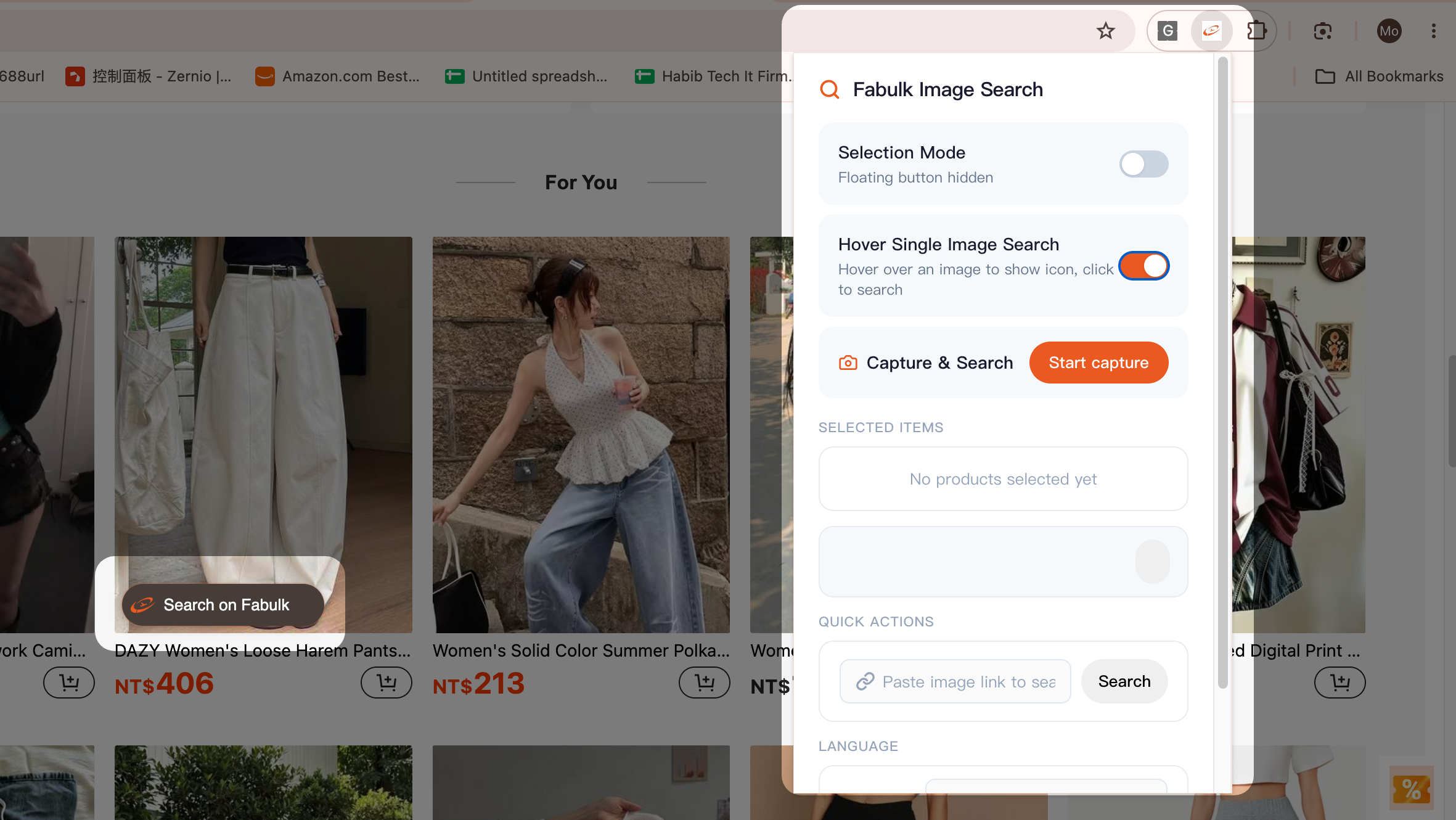 Example: running fabulk on SHEIN
Usage Guide
1. Multi-Select Image Search Mode
1) Enable Multi-Select Image Search Mode
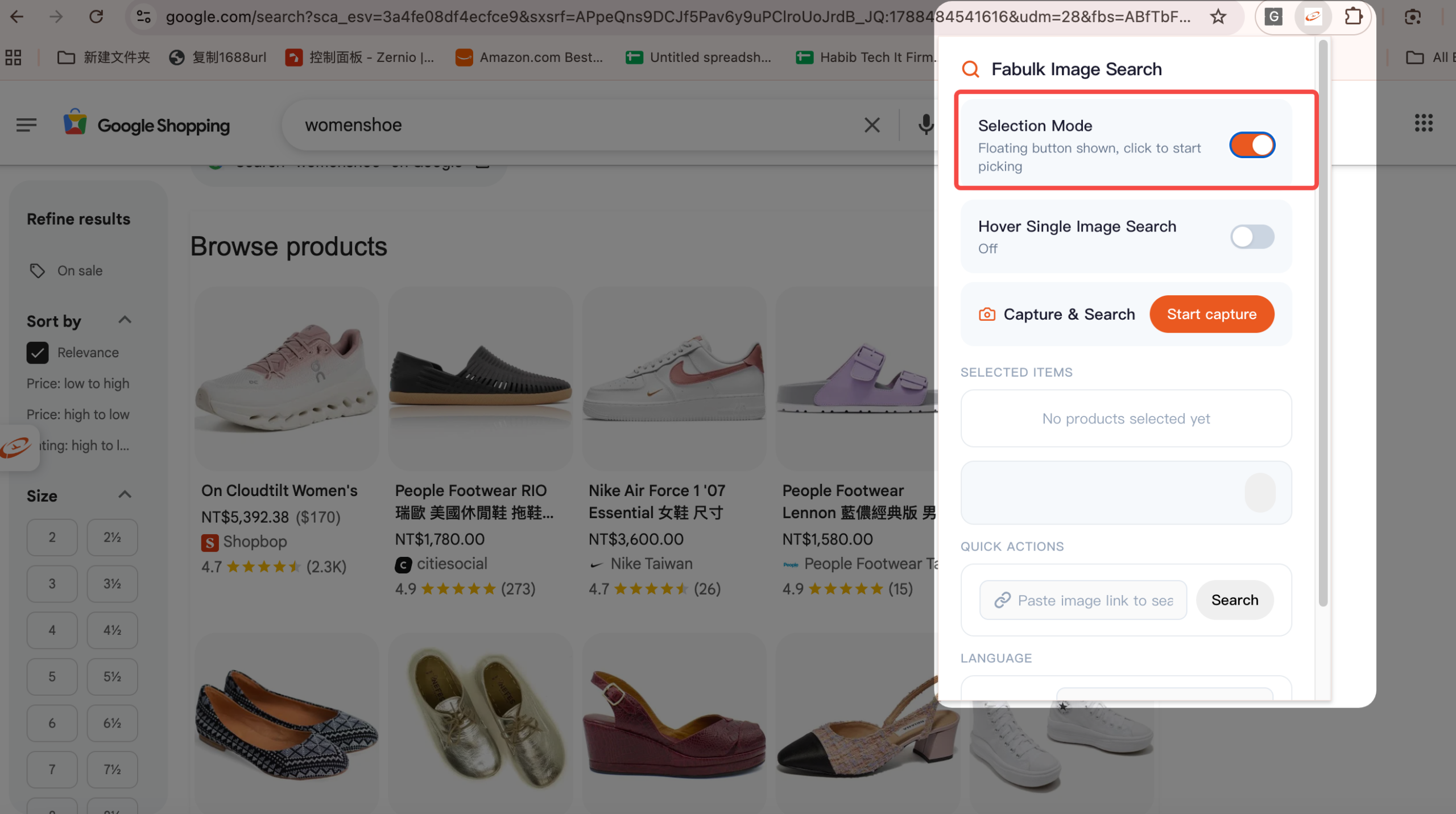 Turn on Multi-Select mode
2) Click the “search on fabulk” Icon
Click the search on fabulk icon on the left side of the screen.
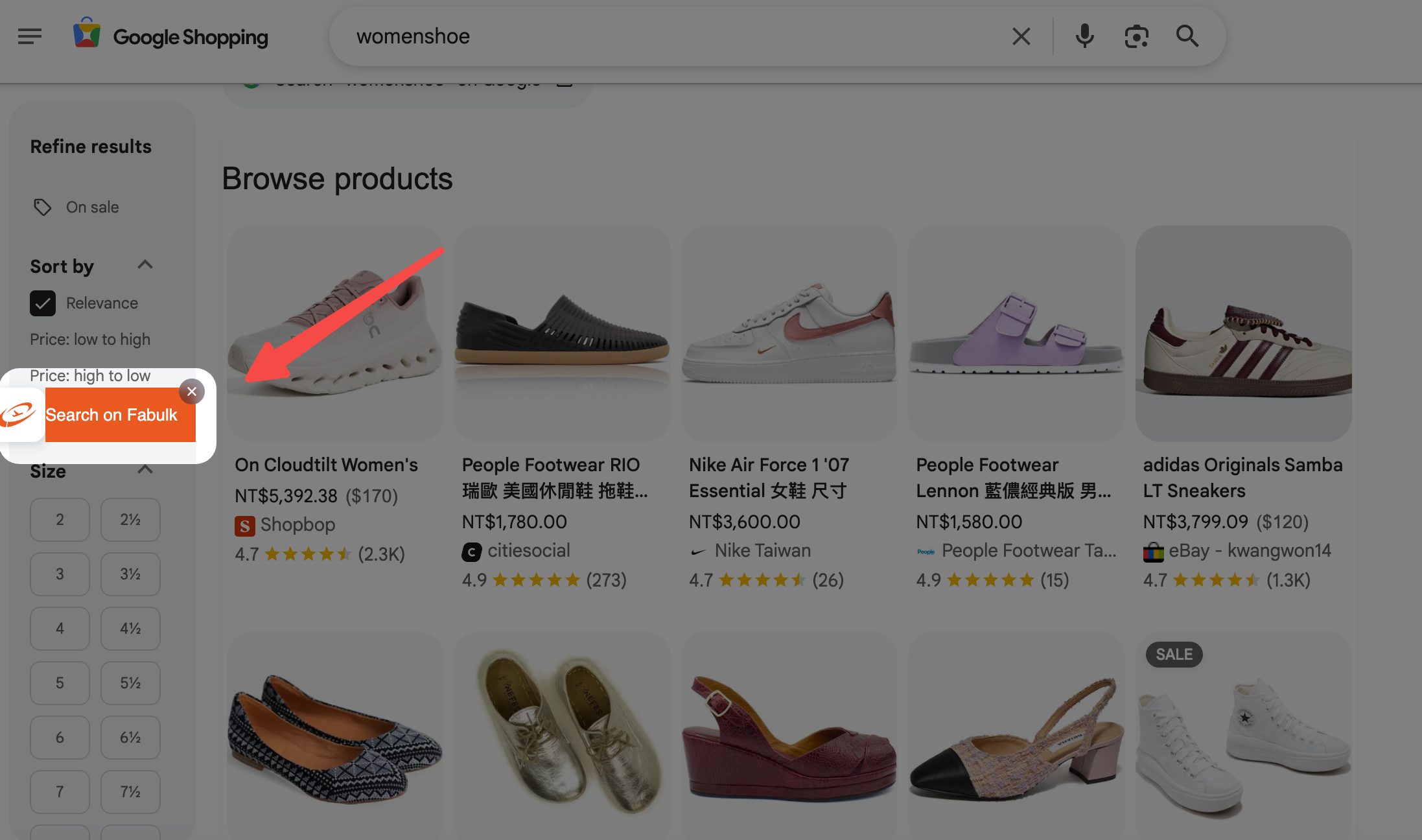 Click “search on fabulk”
3) Select Products across Multiple Shopping Sites
You can select products for image search on several shopping site pages at the same time.
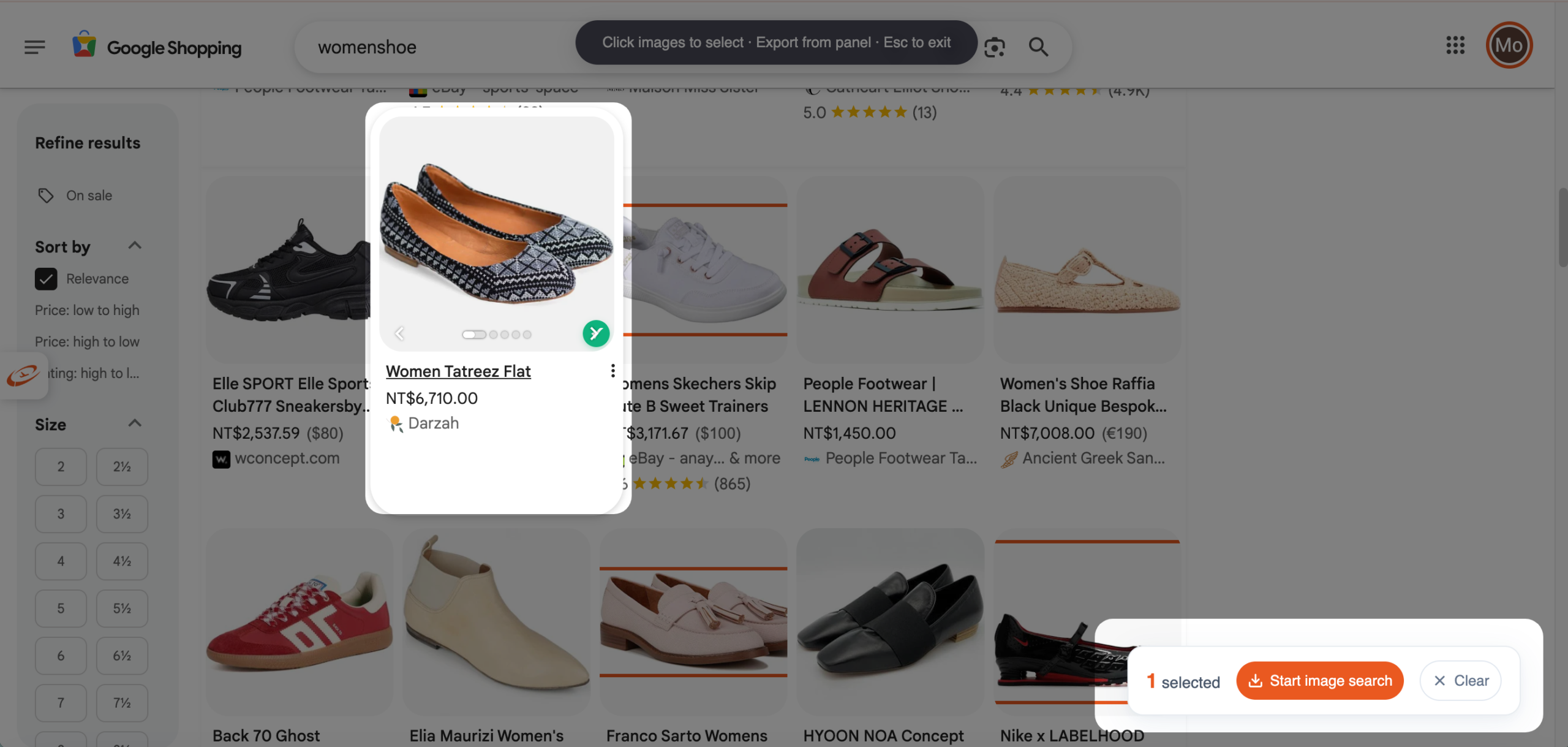 Select products on multiple pages
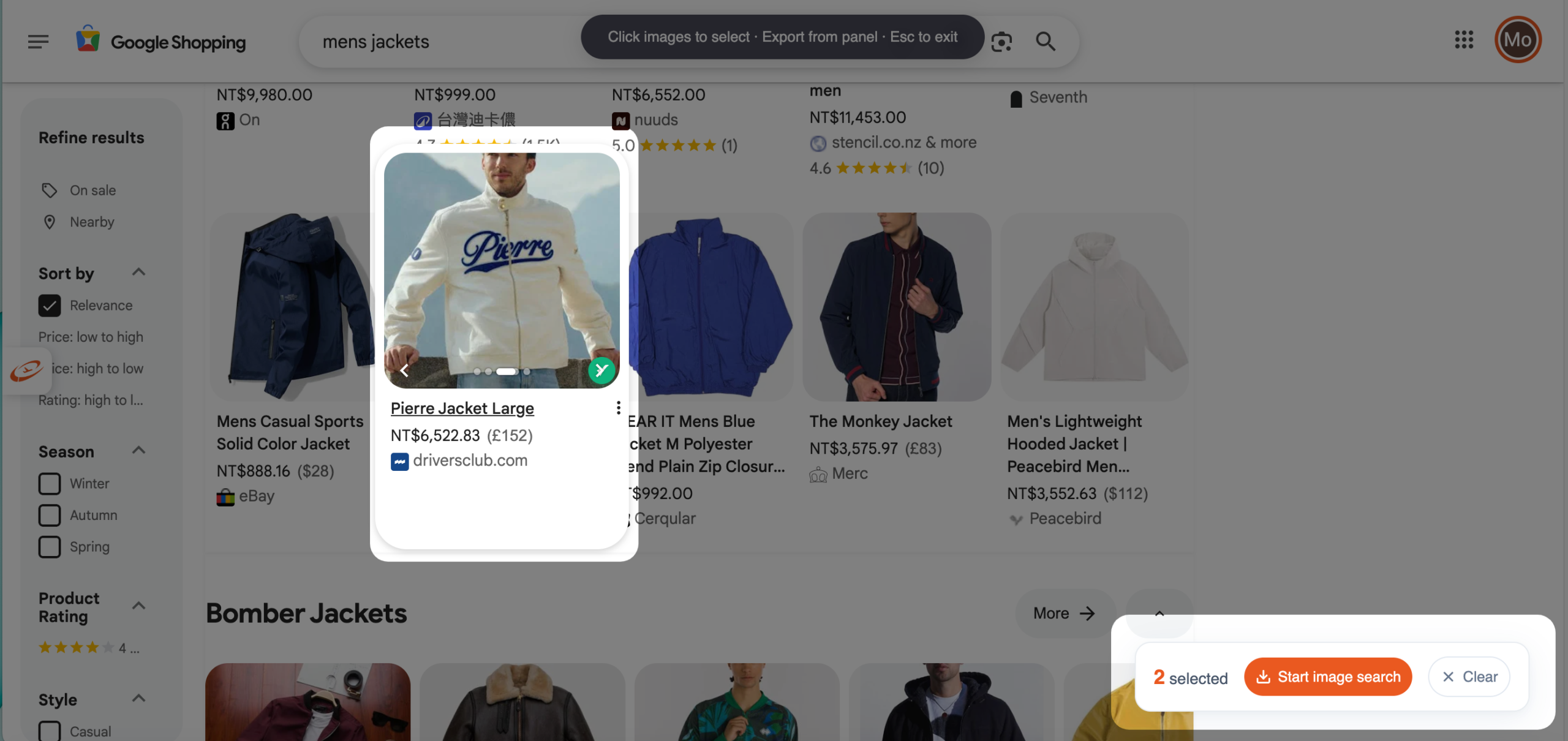 Keep selecting products
Tips: It is recommended not to exceed 200 products. Refresh the page before selecting images on a new page.
4) Click “start image search”
When you are done selecting, click start image search and you will be redirected to the fabulk website to run the image search.
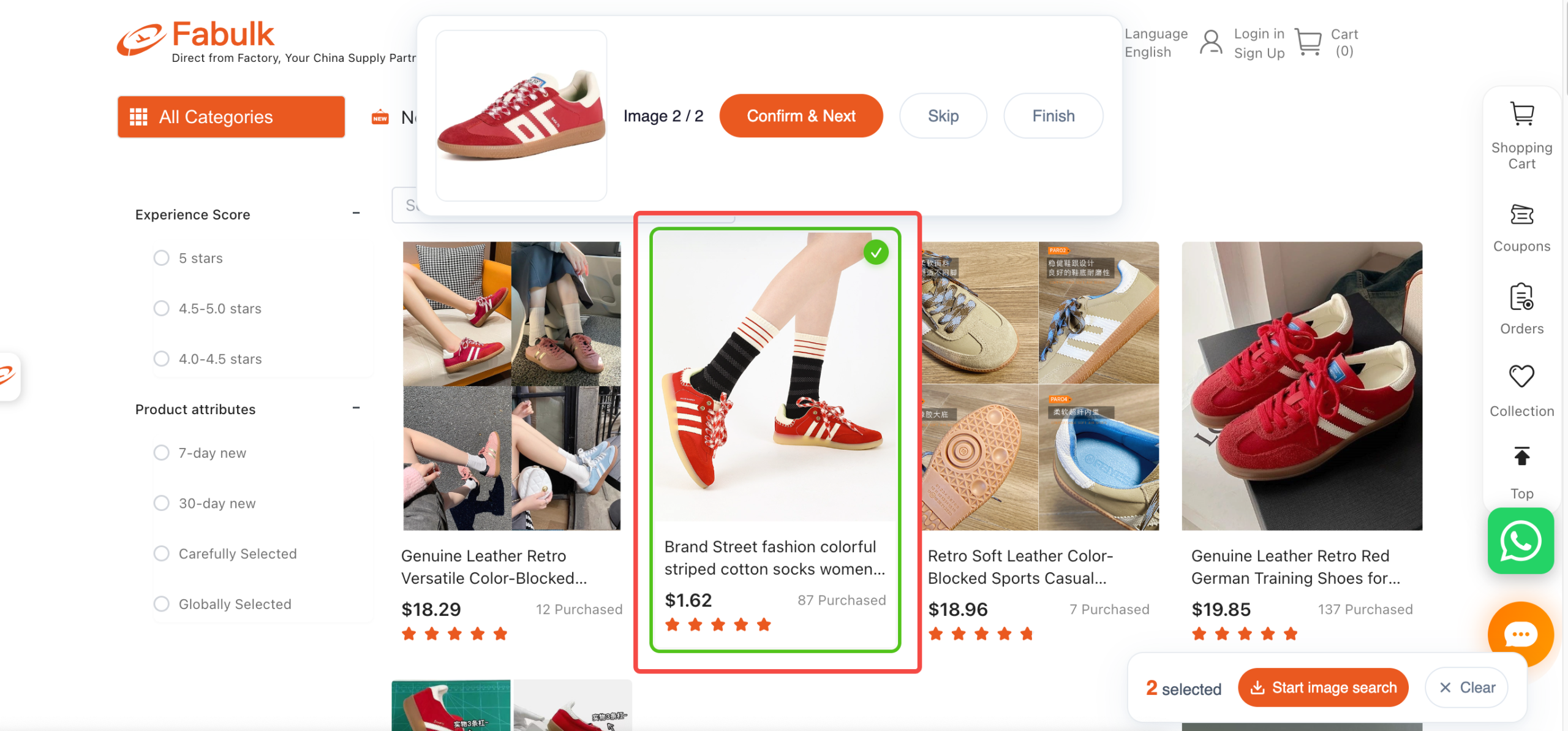 Start the image search
Click the product that matches the image in the results.
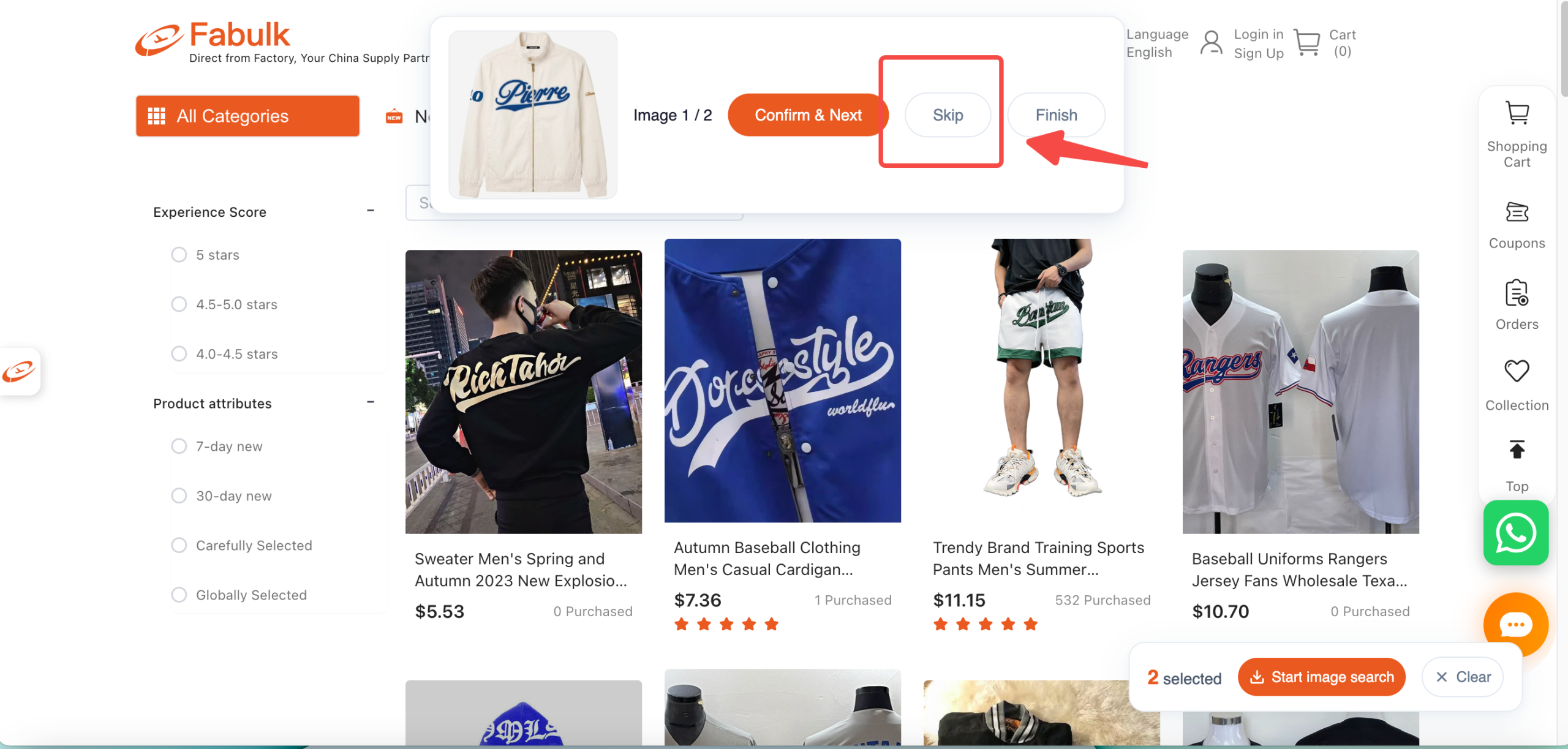 Click the matching product
If no product matches the image, click skip.
5) Export the Table
When all selections are done, click export table.
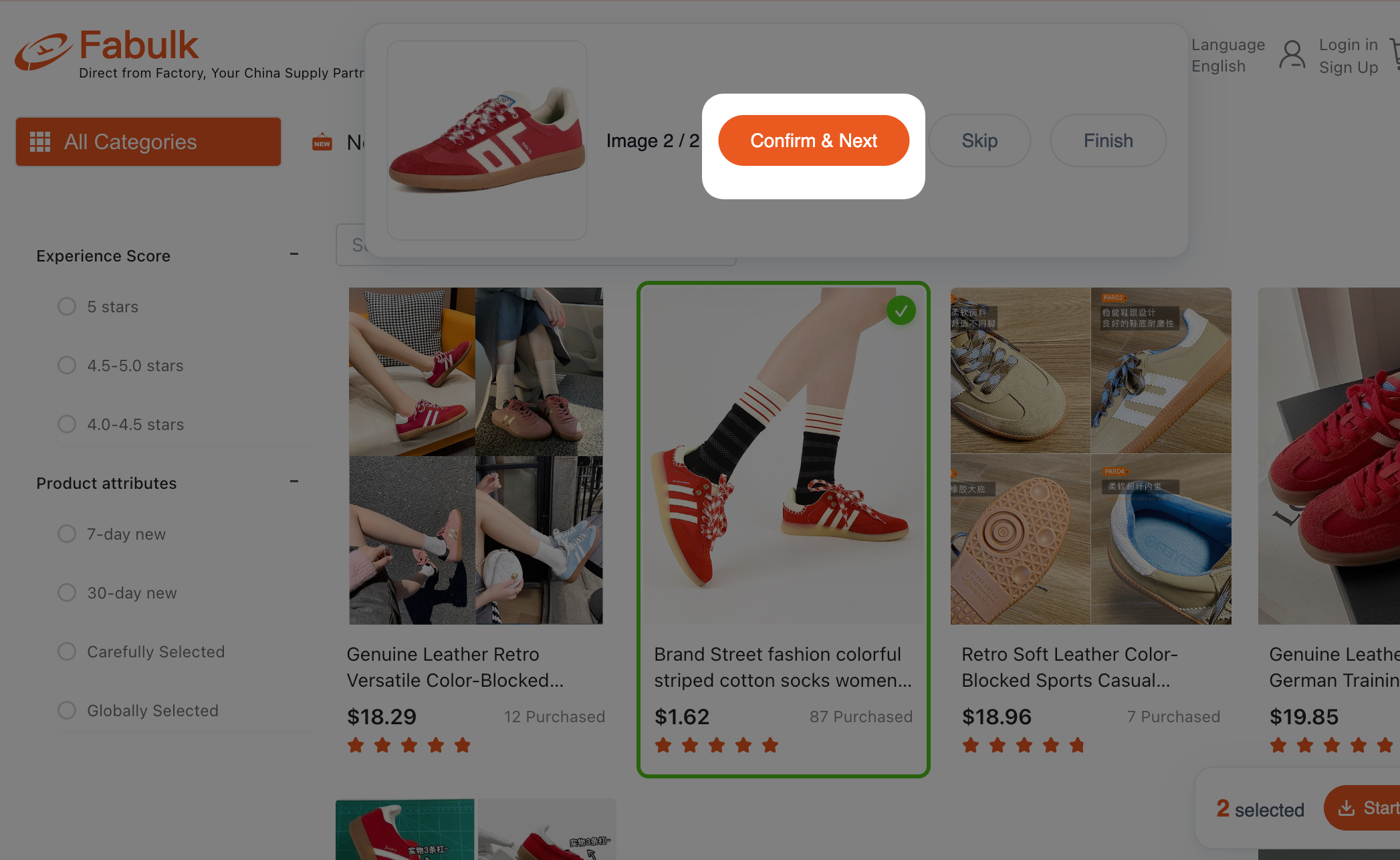 Export the results table
6) Download the Table
Download the exported table file.
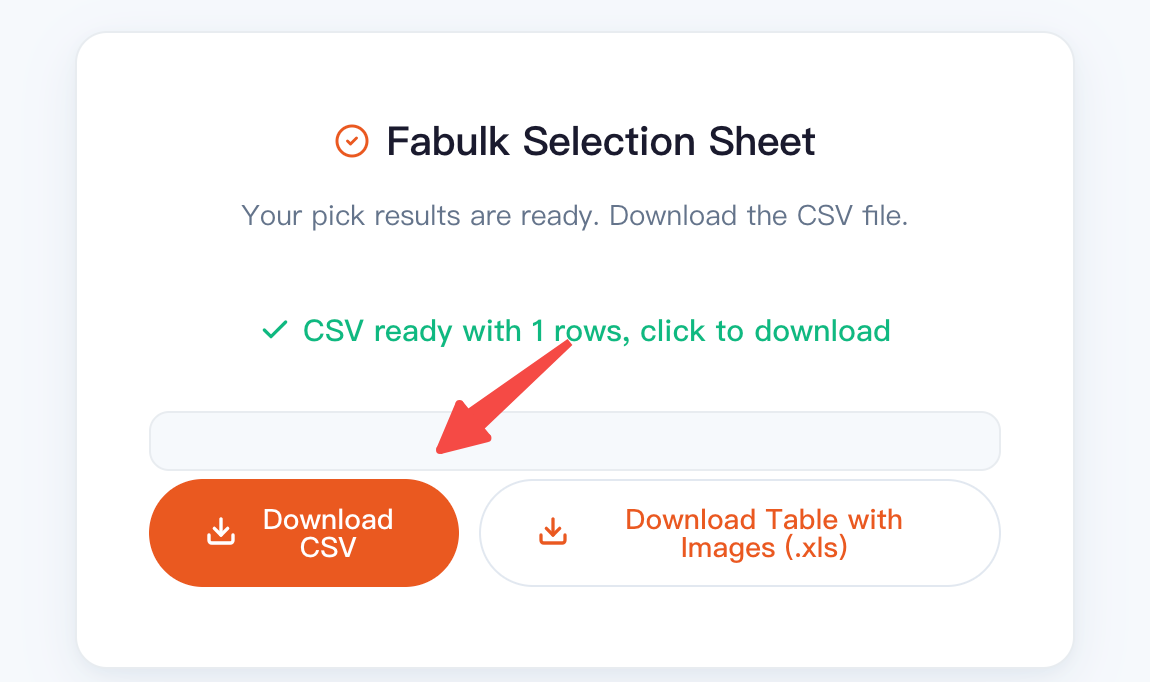 Download the table
Tips: Only Multi-Select Image Search Mode supports exporting a table. In other modes, add products to your cart instead.
2. Single-Select Image Search Mode
1) Enable Single-Select Image Search Mode
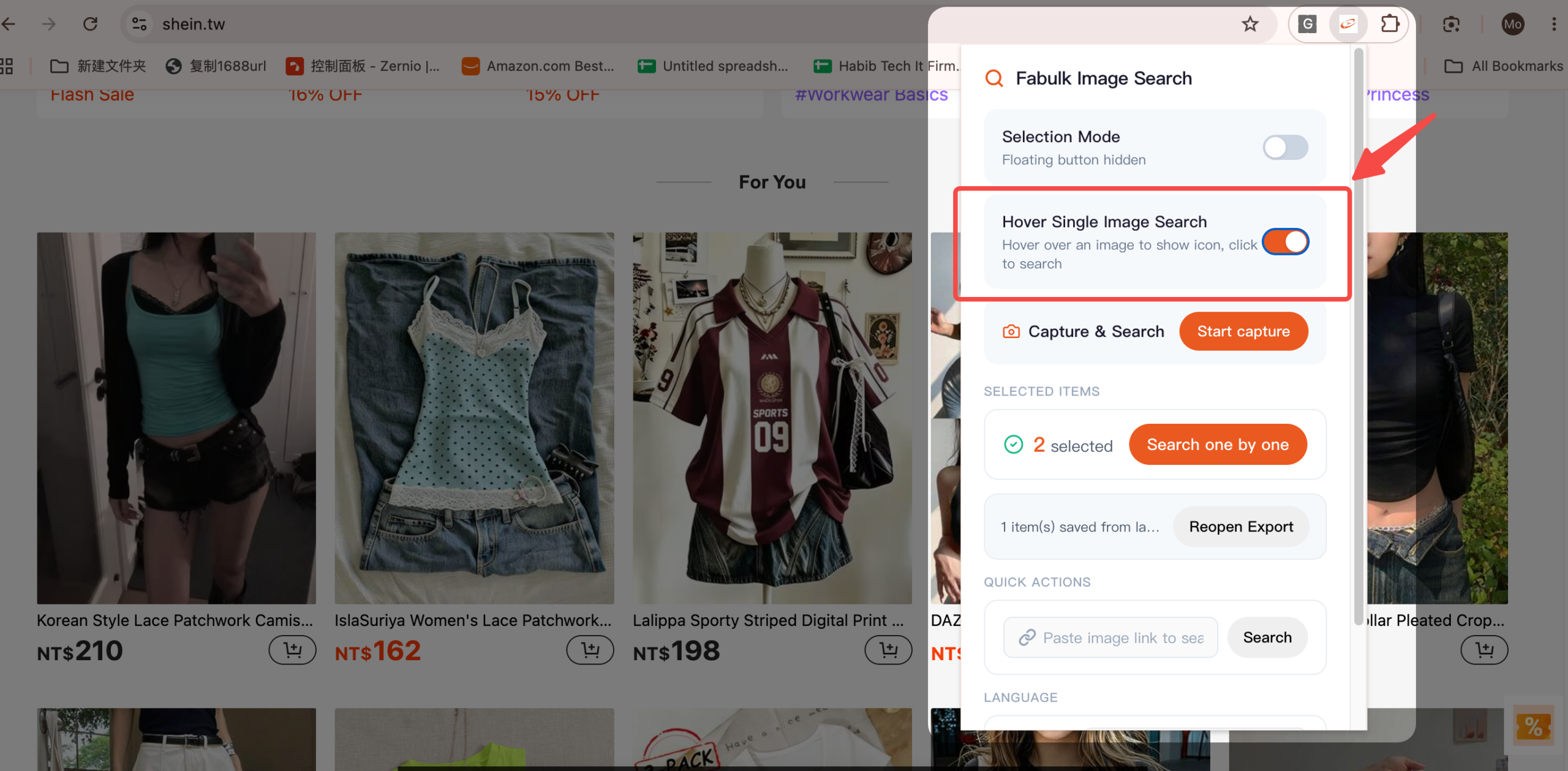 Turn on Single-Select mode
2) Click the fabulk Logo on the Product
Click the fabulk logo at the bottom-left of the product you want to search, and you will be redirected to fabulk to run the image search automatically.
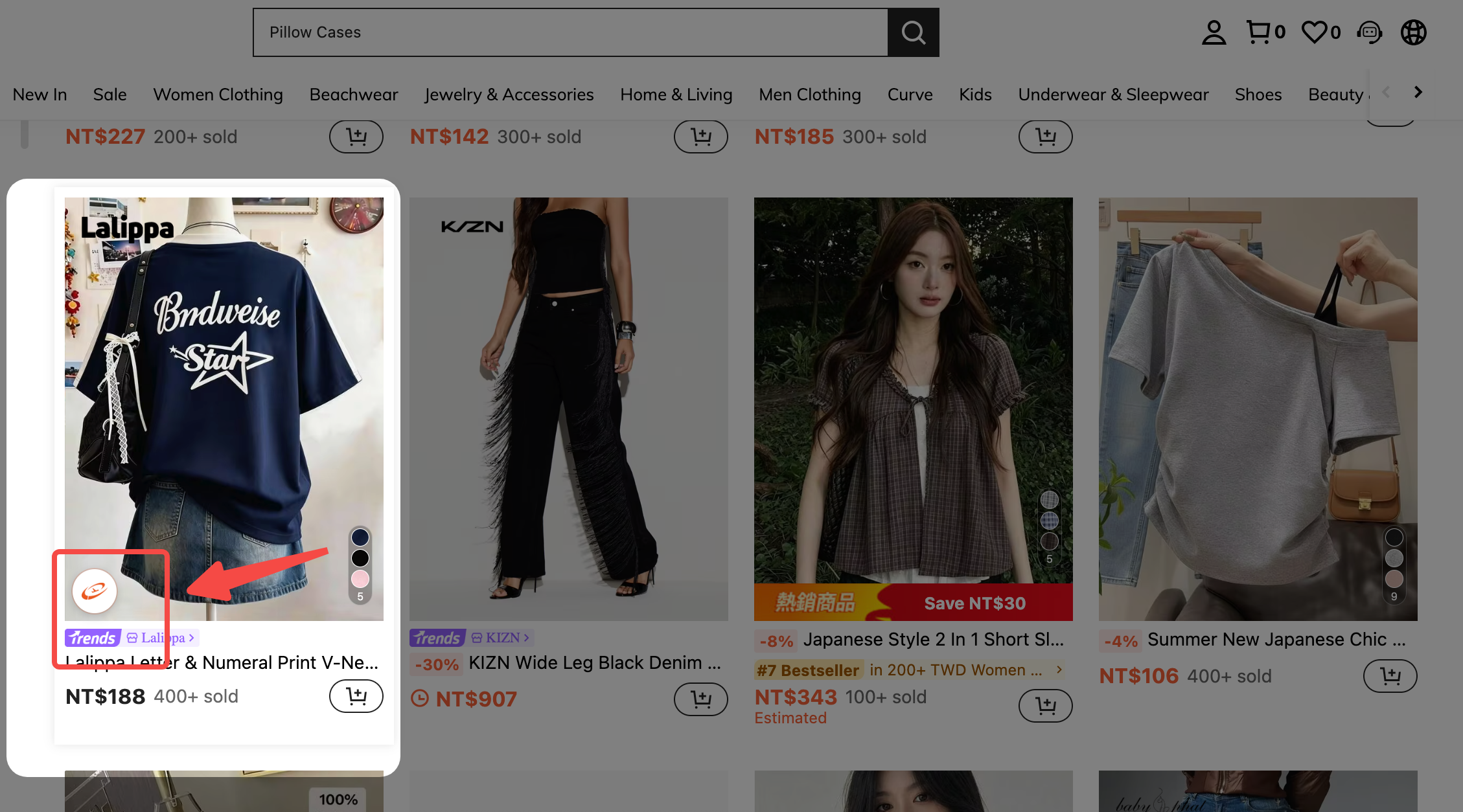 Click the fabulk logo on the product
3. Screenshot Image Search Mode
1) Click “start capture”
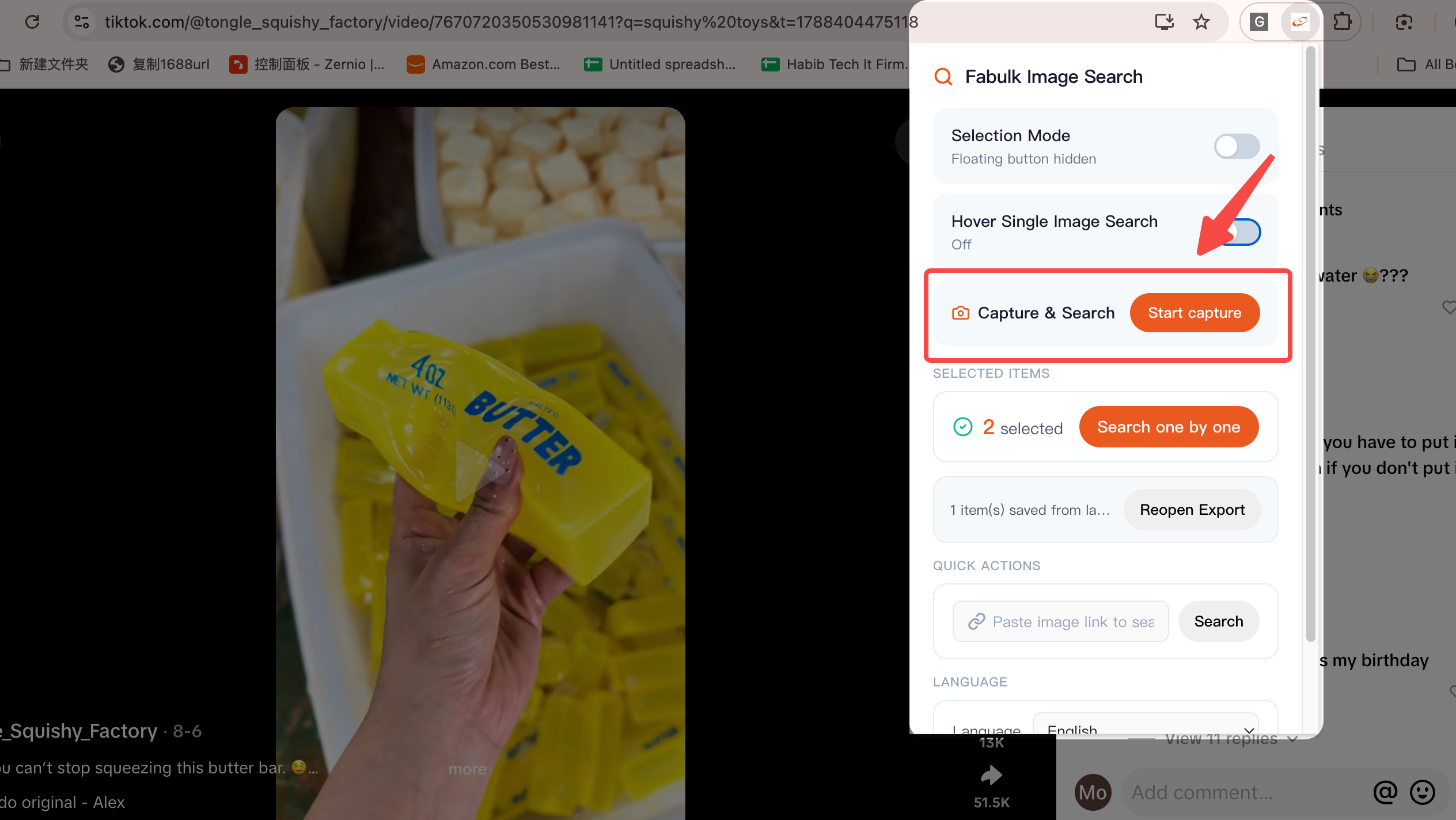 Click start capture
2) Capture the Screenshot
After the screenshot is taken, you will be redirected to fabulk to run the image search automatically.
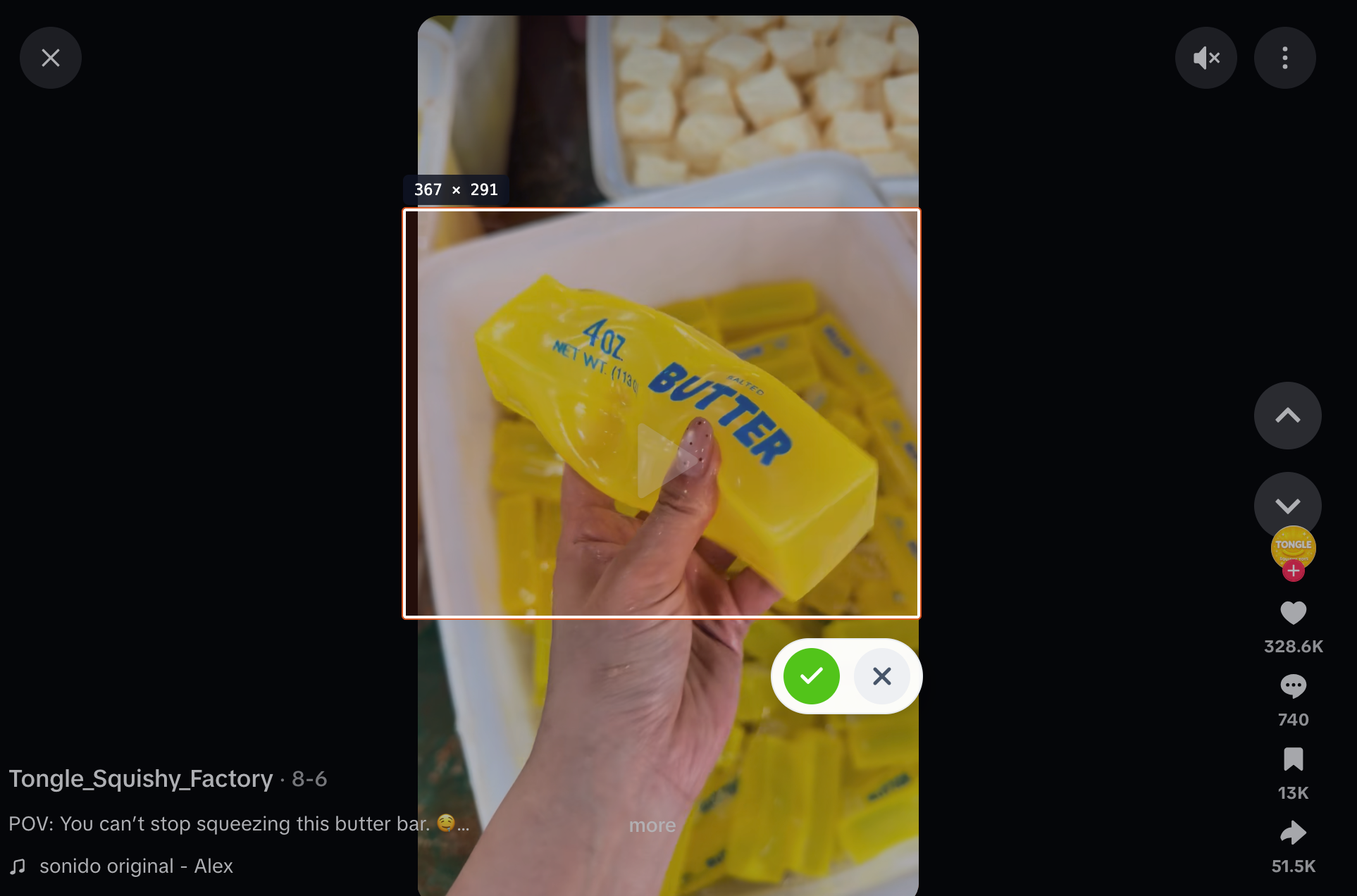 Screenshot search on fabulk